





How to filter out internal users

Contents
Estimated reading time: 5 minutes ☕
When you’re investigating an insight, it’s important to make sure you’re looking at the best possible data and that your findings aren’t skewed. That means checking you understand the definition of events or actions you’re using and, if need be, filtering out groups such as internal users, beta testers and contractors or agencies.
Filtering out these sorts of users can be especially important for large organizations where they may be hundreds, or thousands of internal team members using your product. It can also be important for early-stage organizations, where such users may make up a larger proportion of the total users due to the small sample size.
To make it easier to get accurate insights, PostHog includes tools to filter internal users out – and here’s how to use them.
Step 1: Navigate to project settings
PostHog identifies internal users on a project-by-project basis, so head to your project's Customization settings to get started. If your PostHog instance spans multiple projects then you must repeat this tutorial for each project.

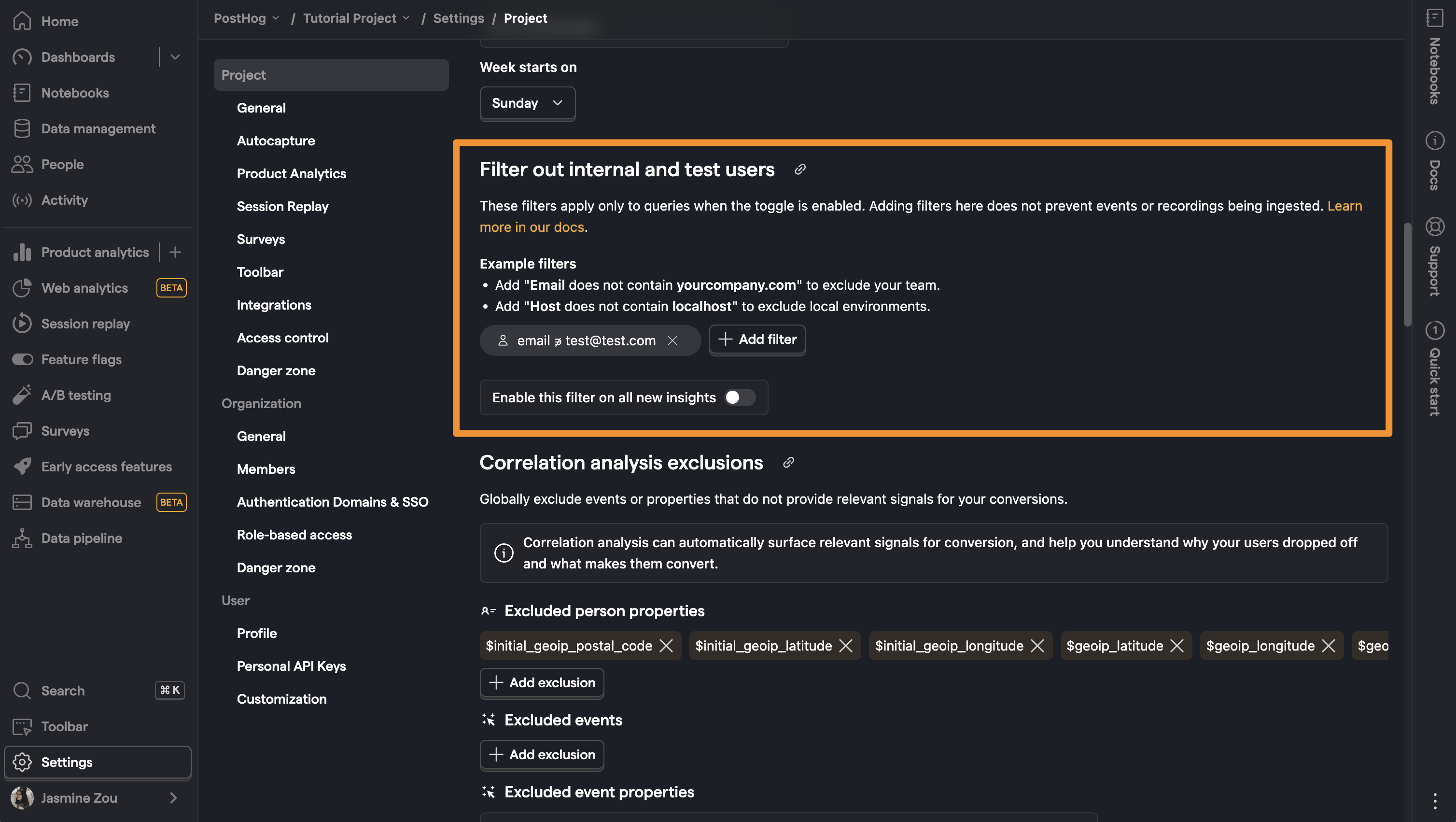
Any internal users you identify for a project will apply for all users on that project.
Step 2: Add an internal user filter
Tip: Inline person property filters (e.g., "email does not end with @your-domain.com") work everywhere, including real-time CDP destinations. Alternatively, you can create a cohort and add it with a "not in" operator – this works well for analytics queries (insights, dashboards) and also works in CDP destinations if the cohort contains exclusively person property filters. Cohorts with behavioral filters or no properties defined will cause CDP destinations to error.
In project settings, scroll down to the ‘Filter out internal and test users’ section and click ‘+ Add filter’ to begin.
Adding a filter here works exactly the same as it does when you add a filter to any other insight, with a list of available events, properties, and cohorts to choose from as a base for your filter. You can add several filters at once, to create an inclusive list of ways to identify groups of internal users or beta testers.
One of the easiest filters to create is to filter out internal users identified by their email address. We do this at PostHog, using the following filter to create insights based only on users who do not have a PostHog email address:
email ⇻ (doesn’t end with) @posthog.com
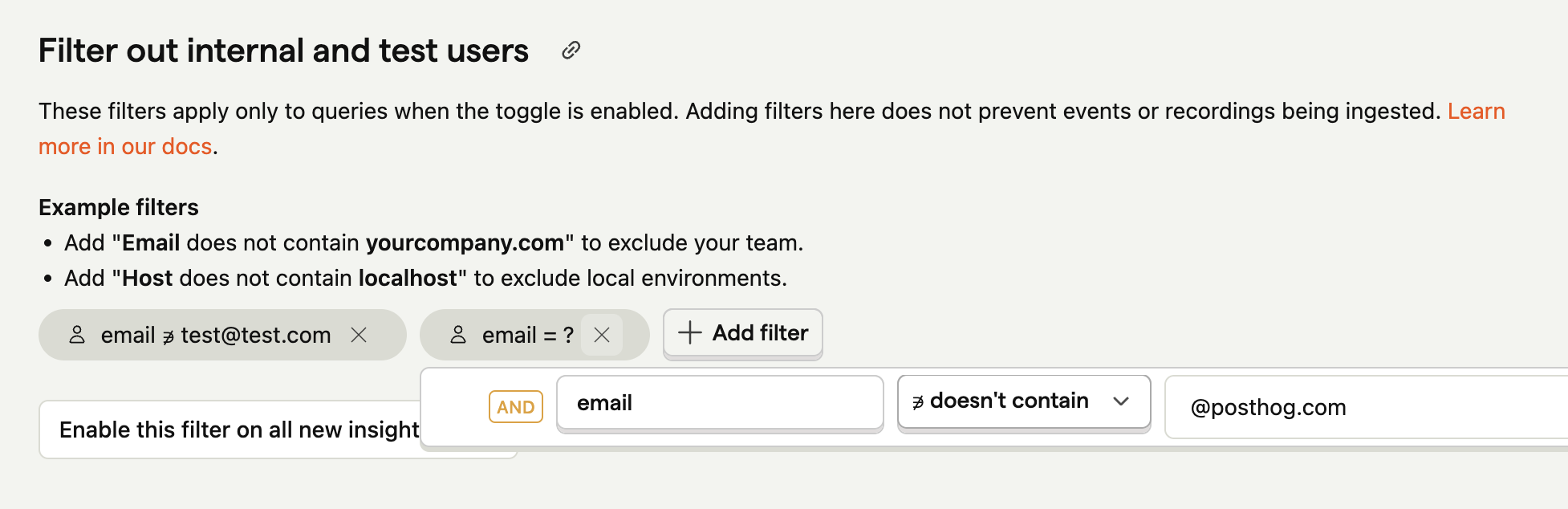
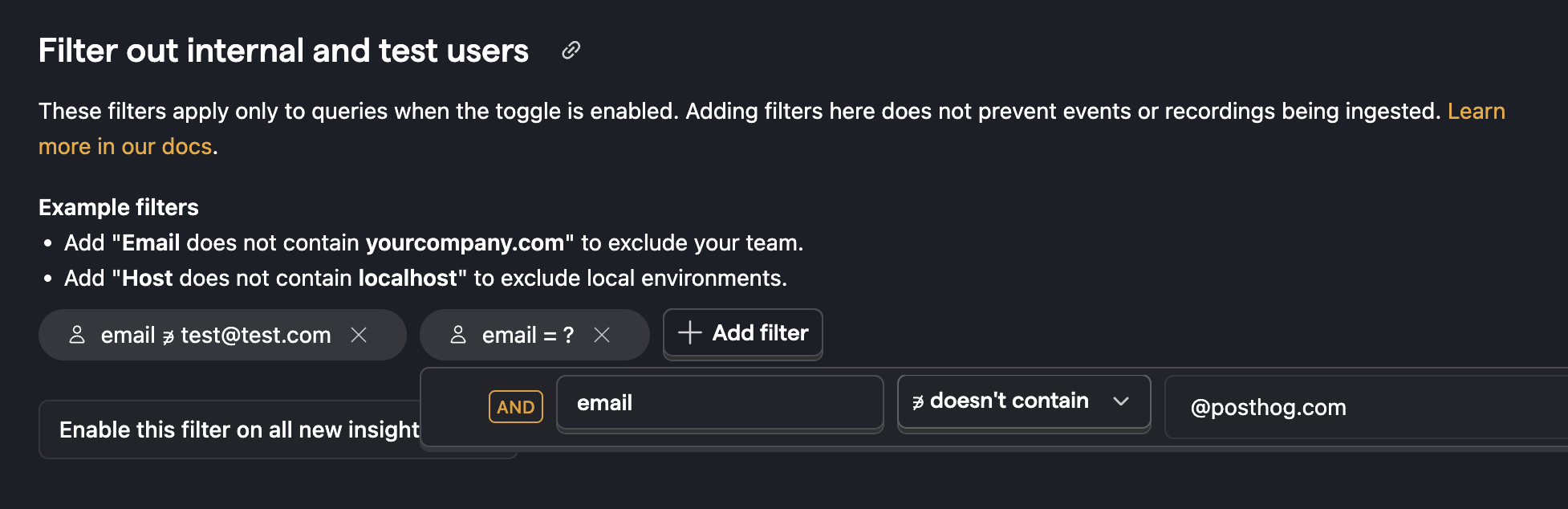
The filters you apply are added as extra filters when the toggle is switched on. So, if you apply a Cohort filter, it means toggling filtering on will match only this specific cohort.
Step 3: Add more filters
PostHog supports adding multiple filters at once, as well as complex filters with multiple values within them.
You can create filters which include more than one value by separating values with a comma. We use such a filter to exclude events from local development environments, for example:
Host ≠ (doesn’t equal) localhost:8000,localhost:5000,127.0.0.1:8000
You can also create filters based on pre-prepared cohorts of users, which is especially useful if you’re using cohorts with Feature Flags or to run Experiments. To do this, simply select the cohort you wish to add to your internal and test user list.
Step 4: Apply the filter to your insights
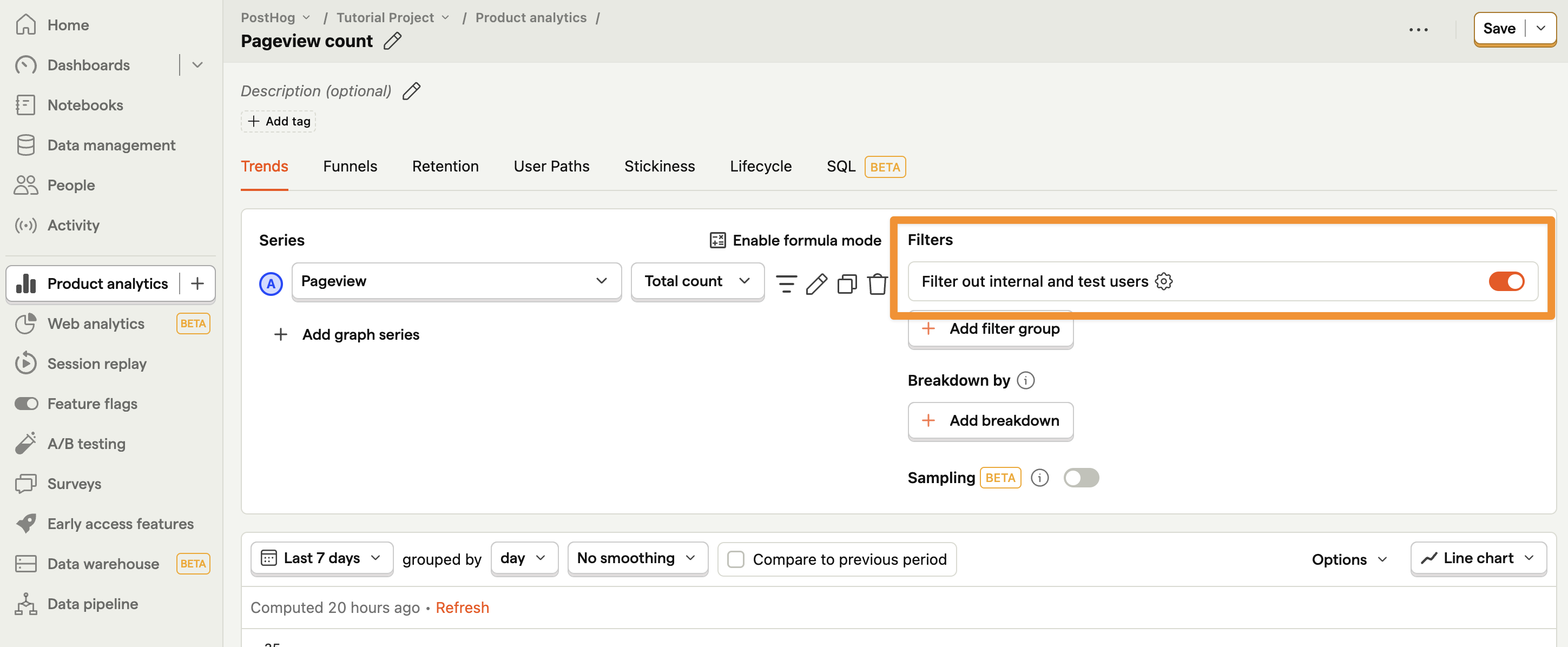

The internal and test user filter is controlled with a simple toggle whenever you create a new insight, or edit an existing one. Turn it on and everything in your filter group will be sifted out; turn it off and you’ll see results from all users together.
Defining your filters doesn't switch them on, so this toggle decides whether an insight excludes internal users. You can also set it from project settings, without opening each insight.
Set the default for new insights
Enable this filter on all new insights sets the starting value for insights created from then on. It doesn't change insights that already exist.
Change every insight you already have
Under Existing insights, Turn on for existing insights and Turn off for existing insights set the toggle for every insight in the project, including insights other people created. Run this after setting up your filters for the first time, so your existing dashboards and insights stop counting internal traffic. You need to be a project admin.
Some insights are left as they are:
- SQL insights. These have no such toggle, so write the exclusion into the query itself if you need it.
- Insights you can't edit. An organization admin can cover those, or you can ask for edit access.
- Insights saved in an older format. These keep whatever they were set to. Open one and save it to convert it, then run this again.
After each run, PostHog tells you how many insights it changed, how many already matched, and how many it left alone.
Dashboards show whatever their insights are set to. A dashboard with its own override for this filter keeps that override.
You can also run this over the API. See internal and test users for the endpoint.
Note: There's no bulk undo. Running it the other way sets every insight to the opposite value, rather than restoring what each one had before. To recover a single insight, open its activity log: each change records the previous query, so you can see what it was set to and set it back by hand.

Subscribe to our newsletter
build mode
Read by 75,000+ founders and builders
We'll share your email with Substack
PostHog is the leading platform for building self-driving products. With a full suite of developer tools – AI observability, product analytics, session replay, feature flags, experiments, error tracking, logs, and more – PostHog captures all the context agents need to diagnose problems, uncover opportunities, and ship fixes. A data warehouse and CDP tie it all together, unifying that context into one source agents can read across. You can steer it all from Slack, the web app, the desktop (PostHog Desktop), or your own editor via the MCP.